
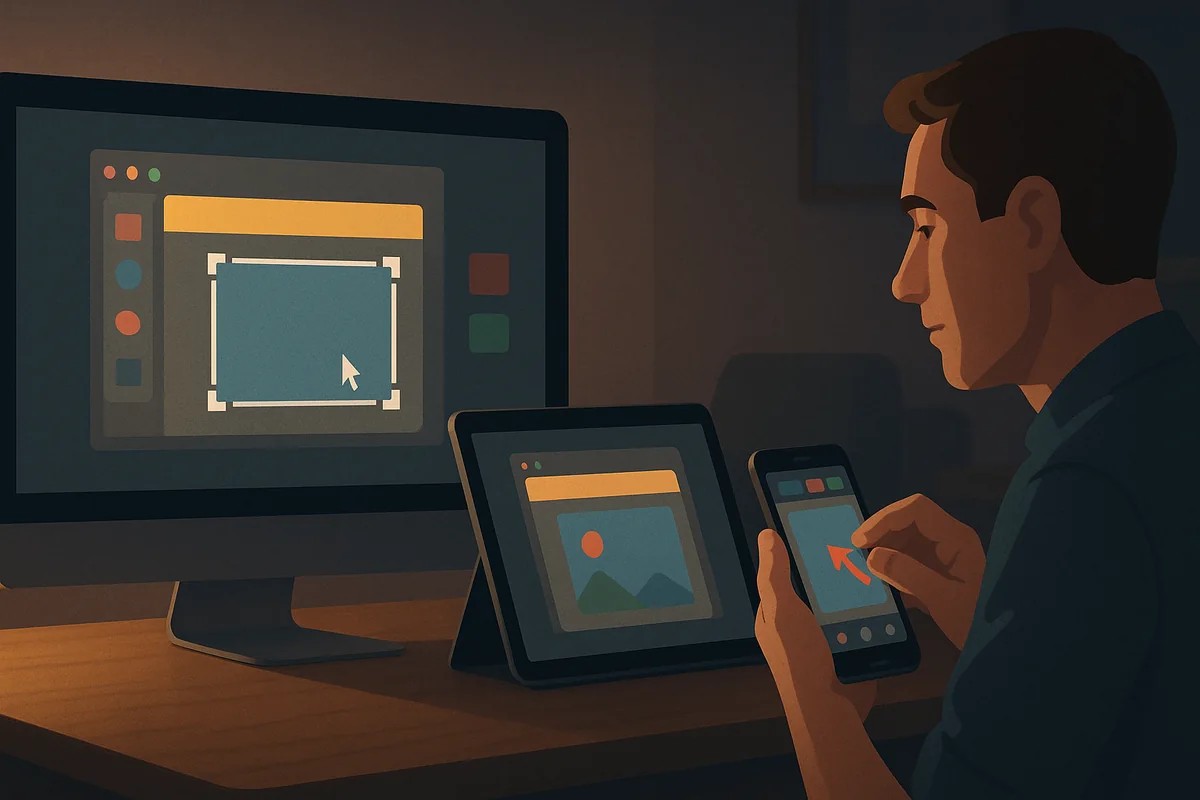
TL;DR: Capturing your screen is one of the most searched-for computer skills in 2026, with approximately 165,000 monthly queries from users needing to save on-screen information, share errors, or document content. This guide explains the fastest methods for Windows, Mac, Android, and iOS devices, including newer features like scrolling captures and AI-powered editing tools now standard on major platforms.
Why Screenshots Remain Essential in 2026
Despite two decades of digital literacy growth, the ability to capture on-screen content remains a fundamental skill that millions search for each month. The sustained search volume reflects both the diversity of devices in circulation and the evolving range of use cases—from remote workers documenting software issues to students preserving research, from social media users sharing content to consumers recording receipts for returns.
Modern operating systems have responded by integrating increasingly sophisticated capture tools directly into their platforms. Windows 11, for instance, now bundles advanced annotation and optical character recognition features into its native Snipping Tool, eliminating the need for third-party software in many workflows. Similarly, mobile devices from manufacturers like Samsung and Apple have introduced palm-swipe gestures and scrolling screenshot capabilities that capture content extending beyond a single screen.
Essential Screenshot Methods by Platform
The technique you need depends entirely on your hardware. Here are the current standard methods for major platforms:
Windows 11 Devices
Microsoft has consolidated screenshot functionality around several key combinations. The Windows Key + Shift + S combination opens the Snipping Tool overlay, allowing users to select rectangular, freeform, window, or full-screen captures. The overlay automatically copies the selection to the clipboard and displays a notification linking to editing tools. For immediate full-screen captures, Windows Key + Print Screen simultaneously captures and saves a PNG file to the Pictures > Screenshots folder. The dedicated Print Screen key alone copies the full screen to the clipboard without saving a file.
The Snipping Tool itself has evolved significantly, now offering delay timers for capturing dropdown menus, automatic window detection, and built-in text extraction from captured images—functionality that previously required separate optical character recognition software.
Mac Computers
Apple maintains its command-based approach across macOS. Pressing Shift + Command + 3 captures the entire screen, while Shift + Command + 4 activates a crosshair cursor for selecting a specific area. Adding the Control key to either combination copies the screenshot to the clipboard instead of saving a file. The Shift + Command + 5 shortcut opens the Screenshot app, providing on-screen controls for capture modes, screen recording, and destination options.
Recent macOS updates have improved metadata handling, automatically embedding capture timestamps and source application details that assist with organization and workflow documentation.
Android Smartphones
The universal Android method combines the Power + Volume Down buttons pressed simultaneously for one to two seconds. A white screen flash confirms capture, and the image appears briefly as a thumbnail with quick-share options. Samsung devices offer an additional palm-swipe gesture: swiping the edge of your hand across the screen from right to left triggers a capture when enabled in settings.
Scrolling screenshots—capturing content that extends beyond one screen, such as long web articles or message threads—are now standard on most Android devices. After taking a standard screenshot, tap the thumbnail and select the scroll or capture more option to automatically extend the capture downward as the system scrolls the content.
iPhones and iPads
Apple’s method varies by device generation. On Face ID models (iPhone X and later), simultaneously press the Side Button + Volume Up button. On Touch ID models (iPhone 8 and earlier), use Home Button + Side Button (or Top Button) instead. The screen flashes white, and a thumbnail appears in the lower-left corner. Tapping the thumbnail immediately opens markup tools for annotation, cropping, and sharing.
iOS has supported full-page capture since version 13 for Safari and many other apps. After capturing a screenshot, tap the thumbnail, then select the Full Page tab at the top to save or share the entire scrollable content as a PDF.
Why It Matters
The persistence of screenshot searches reflects a broader digital divide reality: not everyone learns device capabilities systematically, and platform-specific shortcuts change with each hardware generation. For many users, especially those switching between work and personal devices running different operating systems, remembering the correct key combination becomes genuinely challenging.
This knowledge gap has practical consequences. Remote support professionals estimate that the inability to capture error messages extends troubleshooting time by several minutes per incident, compounding across thousands of daily support tickets. Educational institutions report that students unable to efficiently capture research sources spend measurably more time on citation tasks. Consumer protection agencies note that receipt and confirmation screenshot capabilities directly affect successful dispute resolution.
The economic implications extend to enterprise environments, where standardized screenshot training reduces help desk load and improves documentation quality. Several major corporations have incorporated platform-specific screenshot procedures into onboarding materials after analysis showed that consistent visual documentation reduced miscommunication in distributed teams.
Key Capabilities to Know
- Clipboard vs. saved file: Some shortcuts copy to clipboard (requiring paste into another app), while others automatically save files to designated folders.
- Annotation tools: Native screenshot utilities on all major platforms now include basic markup—arrows, text, highlighting—accessible immediately after capture.
- Scrolling capture: Both mobile platforms and newer PC tools can automatically stitch together long pages that don’t fit on one screen.
- Window-specific capture: Advanced users can capture individual windows or app elements without background content visible.
- Delay timers: Essential for capturing dropdown menus, tooltips, or other elements that disappear when keys are pressed.
- Format options: Most platforms default to PNG for quality, but settings often allow switching to JPG for smaller file sizes.
What Happens Next
Platform developers continue refining capture tools toward more intelligent assistance. Microsoft has integrated AI-powered text extraction that recognizes and indexes screenshot content for system-wide search. Apple’s upcoming updates reportedly include automatic subject detection that can isolate people or objects from screenshot backgrounds. Android manufacturers are testing voice-command screenshot triggers for accessibility and hands-free operation.
The screenshot search volume itself signals an ongoing need for clearer device documentation. Several advocacy groups have pushed for standardized iconography and universal gestures across platforms—proposals that face resistance from manufacturers protecting brand differentiation. More likely, users will continue adapting to platform-specific conventions as device ecosystem lock-in keeps most people within either Apple or Android environments rather than switching between them.
Third-party screenshot tools still serve advanced users needing features like automated cloud upload, custom hotkeys, or professional annotation capabilities, but the gap between native and specialized tools has narrowed considerably. For the vast majority of the 165,000 monthly searchers, platform-native solutions now suffice.
Frequently Asked Questions
Why doesn’t Print Screen work on my laptop? Many modern laptops require the Function (Fn) key pressed simultaneously with Print Screen. Check your keyboard for Print Screen labeled on a secondary color on another key—often sharing space with F10 or Insert—which indicates Fn is needed.
Can I screenshot on one device and immediately access it on another? Yes, if you use cloud clipboard features. Windows 11 syncs clipboard history across signed-in devices, macOS does this through Universal Clipboard when devices share an Apple ID, and several third-party tools offer cross-platform sync. Standard screenshots save locally unless you manually enable cloud photo backup.
How do I capture video instead of a still image? All major platforms now include native screen recording. On Windows 11, press Windows Key + Alt + R to start recording the active window using Xbox Game Bar. On Mac, press Shift + Command + 5 and choose recording options. On iOS, add Screen Recording to Control Center; on Android, swipe down and select Screen Recorder from quick settings (location varies by manufacturer).
This article synthesizes current guidance available across major platforms and reflects common troubleshooting patterns reported by users. As operating systems receive updates throughout 2026, specific menu locations and feature names may evolve.